
002
Concept Lesson
Beginner
Install Thonny
Turn your computer into the place where Pico projects start.
Mission: install your code workshop
Thonny is where you will write tiny commands, save project files, and send code to the Pico 2 W.
In this lesson, your win is not a blinking light yet. Your win is opening the tool that will make the blinking light possible.
Download Thonny
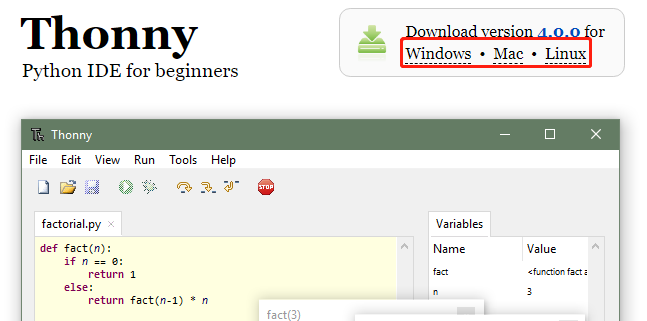
Open https://thonny.org/ and download the installer for your operating system.
If Thonny is already installed, open it and check the version. Pico 2 W support needs a modern Thonny, so update if your copy is old or missing Pico interpreter options.
If your computer warns you
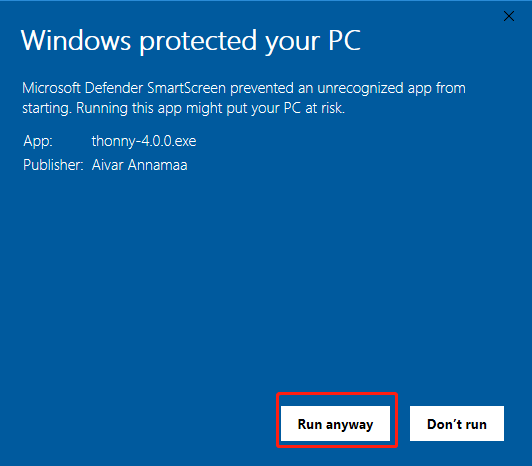
Some computers warn about new installers. Only continue if you downloaded Thonny from the official site.
If the file came from somewhere random, delete it and go back to https://thonny.org/.
Run the installer
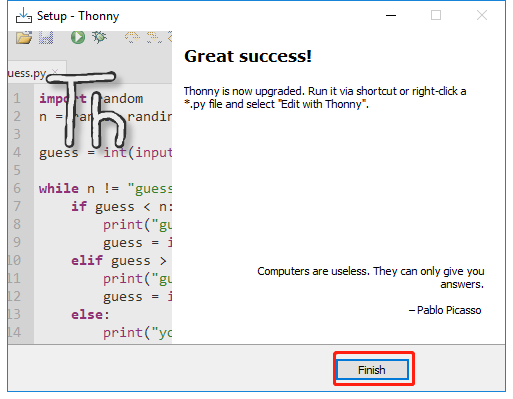
Run the installer and follow the prompts.
On Windows, your browser or security tool might ask whether you want to keep or run the installer. Slow down, read the prompt, and make sure the file came from thonny.org before continuing.
Know the Thonny controls
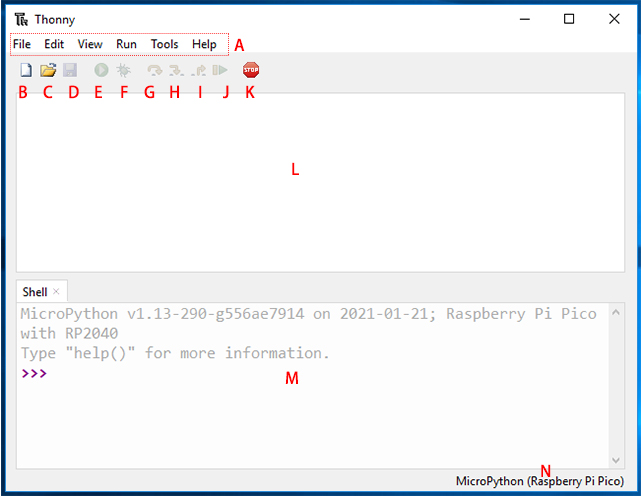
Find these controls before moving on:
- Editor area: where your code will live.
- Shell: where quick messages and errors show up.
- Run button: starts the current script.
- Stop button: interrupts a running script.
- Save button: stores your file on the computer or Pico.
- Interpreter selector: chooses whether code runs as normal Python or MicroPython on the Pico.
Checkpoint
Mark this complete when:
- Thonny opens on your computer.
- You can point to the editor and shell.
- You can find Run, Stop, Save, and the interpreter selector.
Do not worry if the Pico interpreter is not ready yet. That is the next lesson.
Private Dev Log
Write two or three sentences:
1. My computer setup is...
2. One Thonny control I can find now is...
3. One setup issue I want to remember is...
References and next step
Reference used for setup flow and screenshots:
https://docs.sunfounder.com/projects/pico-2w-kit/en/latest/pyproject/python_start/install_thonny.html
Next lesson: Install MicroPython on the Pico 2 W.